

Technical SEO Checklist for UK Business Websites
A technical SEO checklist helps when important UK website pages fail to load, are hard to find or disappear from Google. Use these 22 checks to review access, indexing, links, mobile performance and UK visitor settings, then record findings in the linked worksheet. This first review helps identify issues for follow-up; it is not a professional audit or a complete diagnosis of low traffic.
What is technical SEO?
Technical SEO reviews the setup that lets search engines discover, crawl, render and index a website, including access, directives, links, performance and preferred URL signals.
Before you start: choose your pages and tools
Sample the homepage, key services or categories, one recent article and pages losing visibility; include different templates. Use GSC, a browser and mobile device, PageSpeed Insights and optionally a crawler. Without GSC access, mark dependent checks Not assessed. A small-site first pass may fit one session; complex investigations take longer.
Make a copy of the Google Sheets checklist
Open the Technical SEO Checklist for UK Websites in Google Sheets
Choose File > Make a copy to save the worksheet. Checks 1-22 match D01-D22 on the DIY checklist tab. Fill the highlighted cells; leave calculated fields unchanged. The sheet tracks review progress, not site health.
Who should do each part?
| Responsible person | Main role in this first review |
|---|---|
| Site owner or editor | Choose URLs, run browser checks, record findings and assess business impact. |
| SEO specialist | Interpret crawl, indexing, canonical, performance and structured-data evidence; separate confirmed issues from tool warnings, set SEO priority and coordinate next steps. |
| GSC user | Review URL status (D02, D04, D05), field data (D13) and available rich-result reports (D16). |
| Developer | Check code, rendered HTML, directives, canonicals and structured data; make technical fixes. |
| Hosting provider | Investigate recurring 5xx errors, timeouts and server delays. |
| Privacy lead | Confirm consent requirements for the site’s cookies and tags (D19). |
The owner can record findings without changing code. Involve specialists when their access or expertise is needed.
In this checklist
Google Sheets template and instructions
Crawling and indexing: checks 1-6
Internal links and structure: checks 7-10
Mobile, rendering and performance: checks 11-13
HTTPS, titles and structured data: checks 14-16
Images and meta descriptions: checks 17-18
Settings for UK visitors: checks 19-22
Website launch and relaunch checks
Extra checks for more complex websites
Prioritise and record your findings
Questions about a DIY technical SEO review
Crawling and indexing: can Google access the right pages?
 1. Check that important pages load successfully
Open each selected URL in your browser. Look for error messages, unavailable content, login barriers or unexpected redirects. If you use a crawler, check the HTTP response codes as well. Look for 5xx server errors and intermittent failures; repeat affected requests and record the time.
Expected result: public pages you want indexed are accessible and return a successful response. A page that displays an error while returning 200 can still need investigation as a soft 404.
Next step: record the affected URL and response. Ask your developer to investigate important pages returning errors; the correct solution depends on whether the content is meant to exist. For recurring 5xx errors or timeouts, ask your host to inspect uptime and server logs. One successful visit does not establish stability.
2. Inspect whether important URLs are indexed
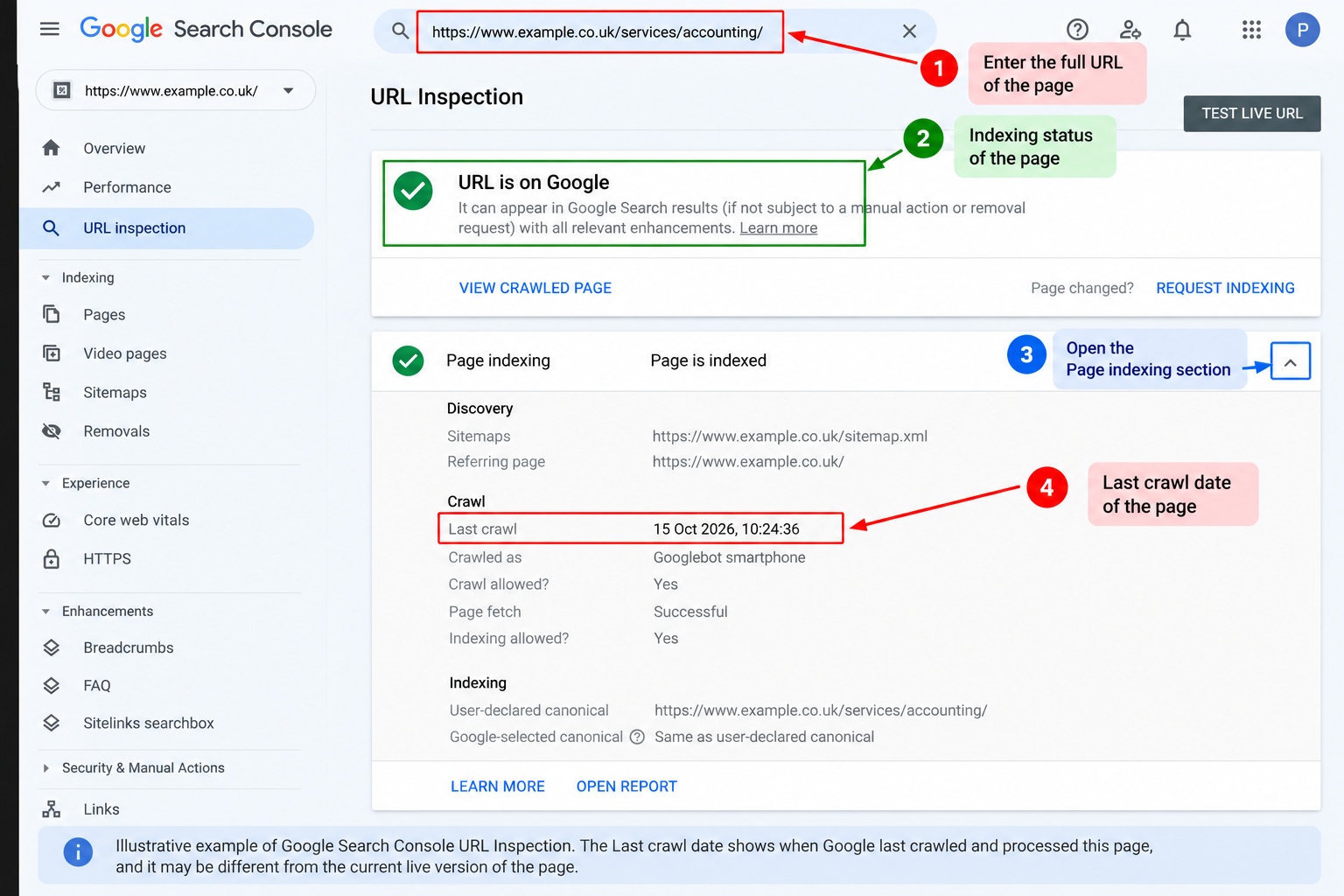
Paste a selected URL into Search Console’s URL Inspection tool. Review the indexed result, crawl information and Google’s selected canonical where available. Use the live test to examine current accessibility; it is separate from the indexed result.
Quick steps: Select the correct property, paste the full URL in the inspection bar at the top, then open Page indexing. Record the index status and last crawl date. If you run Test live URL, record that result separately from Google’s indexed version.
Expected result: pages intended for search have an understandable indexing status. Review relevant examples in the Pages report instead of trying to make every URL indexed.
Next step: investigate important exclusions. ‘Crawled – currently not indexed’ is a status, not a confirmed diagnosis of poor content or a technical fault. Check the page, duplicates and available crawl evidence before choosing a fix.
Google’s URL Inspection documentation
3. Review robots.txt restrictions
Open your site’s /robots.txt file and look for rules that block important sections or resources. Confirm any unexpected rule with the person responsible for the site; legitimate exclusions should remain intentional.
Expected result: pages and resources needed for search rendering are not accidentally blocked. A missing robots.txt file is not automatically an SEO defect.
Next step: record suspicious rules and affected URLs before changing them. Robots.txt controls crawling and does not reliably keep a URL out of search results. It is also not a security mechanism.
4. Look for accidental noindex directives
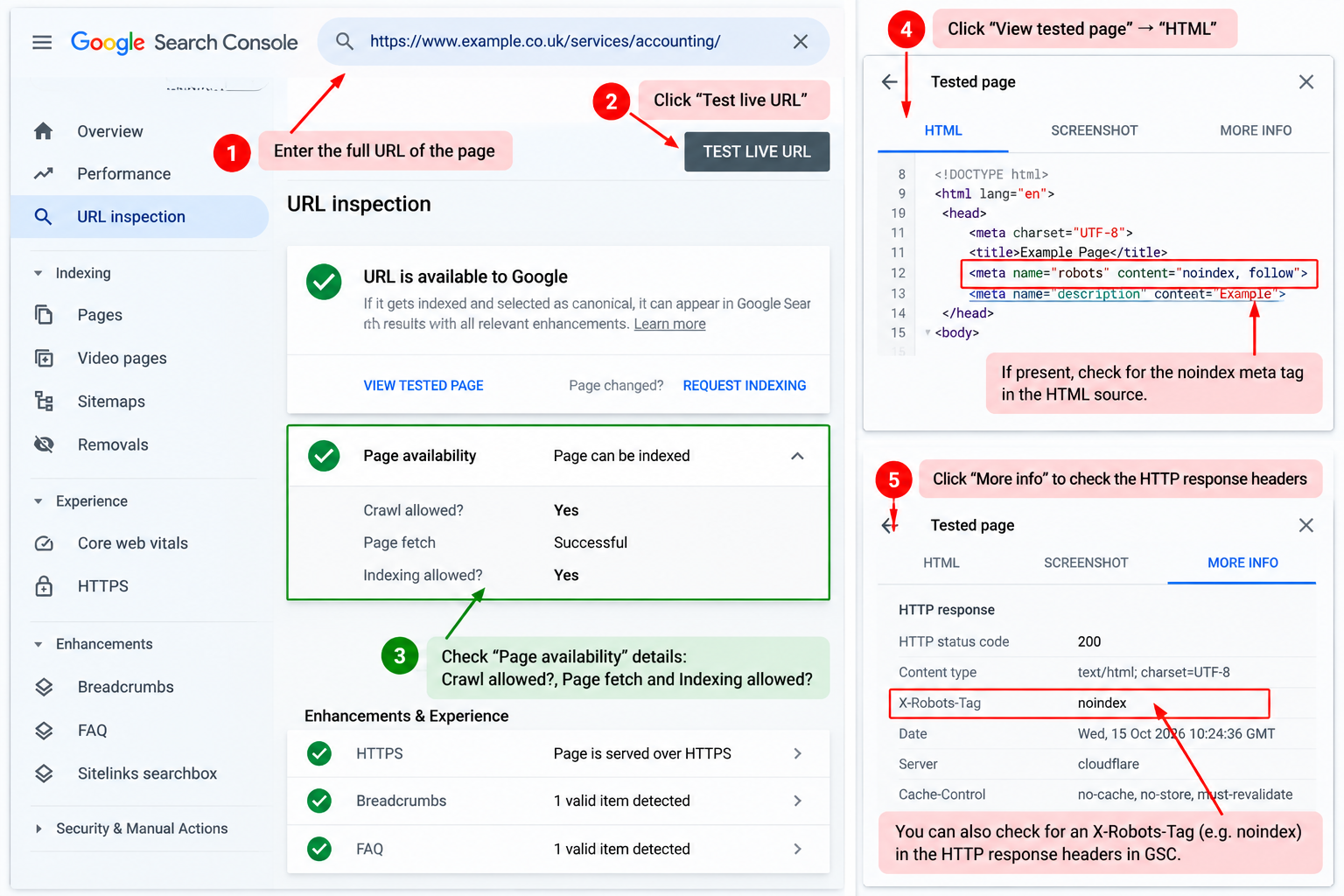
Use URL Inspection, your CMS settings or a crawler to check whether important pages contain a noindex directive. Directives may appear in HTML or an X-Robots-Tag response header.
Quick steps: Inspect the URL, choose Test live URL, then check Page availability > Indexing allowed? Record Yes/No and the reason. To check the rendered meta robots tag, open View tested page > HTML and find noindex. An X-Robots-Tag is an HTTP response header; ask a developer or use a crawler to confirm it.
Expected result: pages intended for search are not marked noindex. Private, utility or other intentionally excluded pages may need that directive.
Next step: check whether a staging or template setting was carried into production. Google needs to crawl a page to see its noindex directive, so blocking the same page in robots.txt can prevent that instruction being processed.
5. Check canonical signals on duplicate URL versions
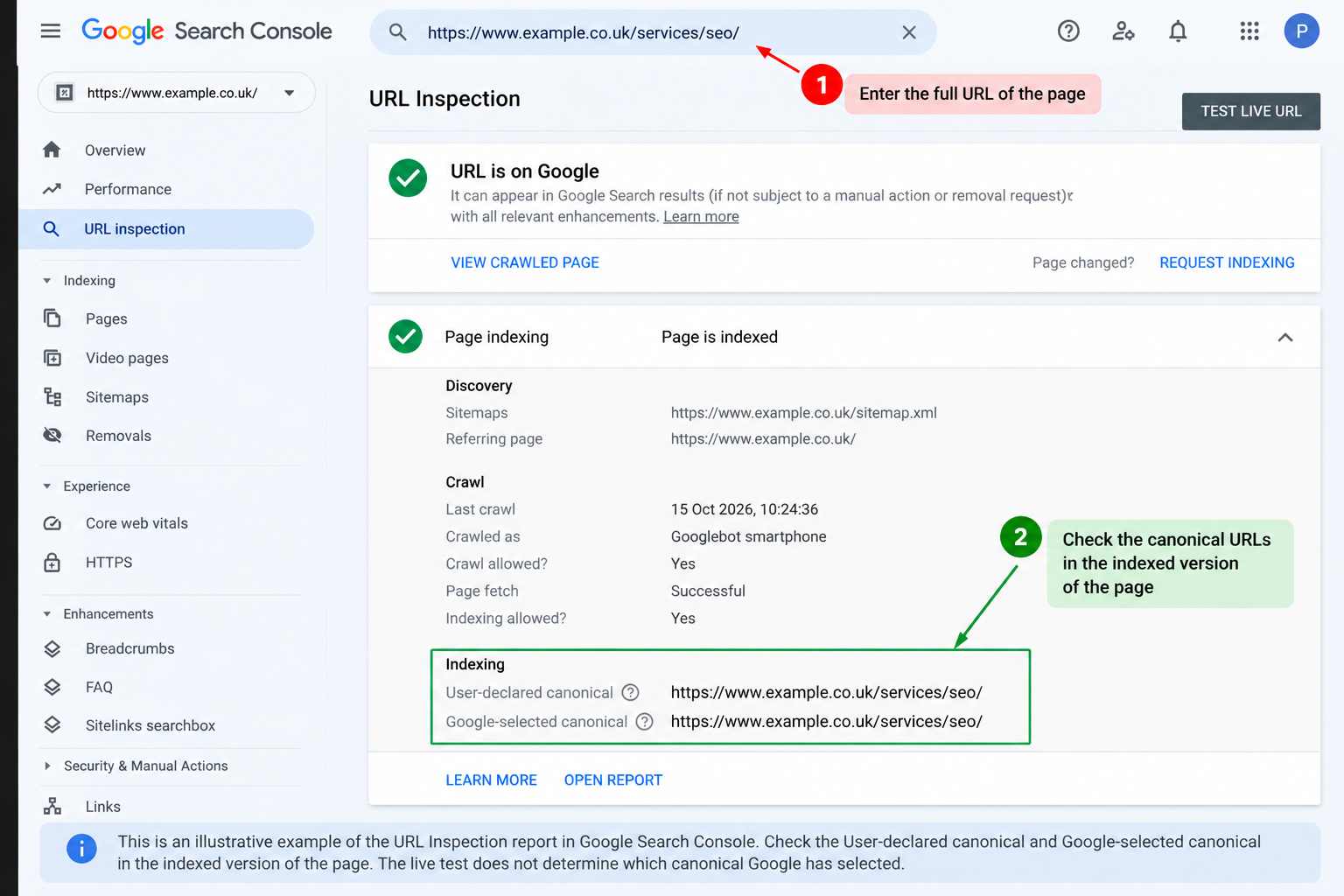
Compare a page’s declared canonical with its intended preferred URL and the Google-selected canonical in URL Inspection where available. Look for references to a staging domain, an unrelated page or an unavailable target.
Quick steps: Inspect the URL and expand Page indexing in the indexed result. Record both User-declared canonical and Google-selected canonical. The live test does not establish Google’s canonical choice; if the values differ, ask a developer to check the page’s rel=canonical and related signals.
Expected result: canonical signals, internal links and sitemaps consistently reference the intended version. Canonicalisation is a signal, not a guarantee that Google will choose that URL.
Next step: record conflicts for review. Do not point distinct service pages at one another to solve keyword overlap; first establish whether the pages are genuinely duplicates.
Google’s canonicalisation guidance
6. Review the XML sitemap
Open the sitemap listed in Search Console or robots.txt. Sample important URLs and check whether they represent the preferred, accessible pages you want indexed. Review submission and processing information in Search Console.
Expected result: the sitemap does not intentionally list redirecting, missing, noindex or duplicate alternate URLs. Useful pages should not be accidentally omitted from a sitemap designed to cover them.
Next step: investigate stale sitemap entries or generation settings. A sitemap helps discovery; submitting it does not guarantee crawling or indexing, and some small, well-linked sites may not require one.
Internal links and structure: can important content be found?
 7. Find broken internal links
Follow links from the selected pages or run a crawl and review internal links to missing URLs. Check navigation, breadcrumbs, related content and important calls to action.
Expected result: internal links reach the intended content. A deleted page can correctly return 404 or 410; the problem may be the link that still points to it.
Next step: update or remove the broken link. Use a redirect when there is a genuinely relevant replacement, rather than sending every missing URL to the homepage.
8. Review redirects and URL consistency
Check links that redirect, including old HTTP URLs and old page addresses. A crawler can help identify chains and loops. Confirm that the final destination is relevant and accessible.
Expected result: internal links normally point directly to the preferred destination. Permanent moves and temporary changes should use the appropriate redirect behaviour.
Next step: update obsolete internal links and have unnecessary chains reviewed. Do not change every redirect to 301 without understanding why it exists.
9. Assess click depth and navigation
Start at the homepage and count the navigation steps needed to reach key service, category and content pages. Compare their importance with how easily users can find them. A crawler can show depth within its crawl, which depends on the crawl’s starting point and settings.
Expected result: important content has a clear route through relevant navigation and internal links. There is no universal rule that every page must be within three clicks.
Next step: add useful links from relevant pages or revise the hierarchy where important pages are hard to reach. Use descriptive anchor text that explains the destination.
10. Look for orphan pages
Compare URLs from your CMS, sitemaps and Search Console with URLs found through internal links in a crawl. A crawler following links alone can miss pages with no internal route.
Expected result: useful public pages have links from relevant parts of the website. Intentionally isolated campaign or utility pages need to be assessed separately.
Next step: review potential orphans before adding links or removing pages. If you cannot access a complete URL inventory, record this check as partial rather than declaring that no orphan pages exist.
Mobile, rendering and performance: does the page work in practice?
11. Compare mobile and desktop content
Review the selected templates on a mobile device and desktop. Check the main text, navigation, contact links, forms and important information. Expand menus and accordions as a user would.
Expected result: essential content and links are available on mobile as well as desktop. Different layouts are normal; missing content, unusable controls or blocked navigation need investigation.
Next step: record the device, template and behaviour. If you use a crawler, mobile and desktop configurations can help expose differences, but the results depend on user-agent and rendering settings.
12. Check content and links that depend on JavaScript
If important text or navigation is loaded by JavaScript, review available rendered evidence using URL Inspection and, where appropriate, a crawler with JavaScript rendering enabled. Compare it with the page users see.
Expected result: essential content and crawlable links appear in the rendered output. Links should normally use an anchor element with an href that resolves to a valid URL.
Next step: ask your developer to investigate missing content, links or metadata. A rendered crawl is useful evidence, but it does not reproduce Google’s complete processing or prove what is indexed.
Google’s JavaScript SEO guidance
13. Check Core Web Vitals and performance evidence
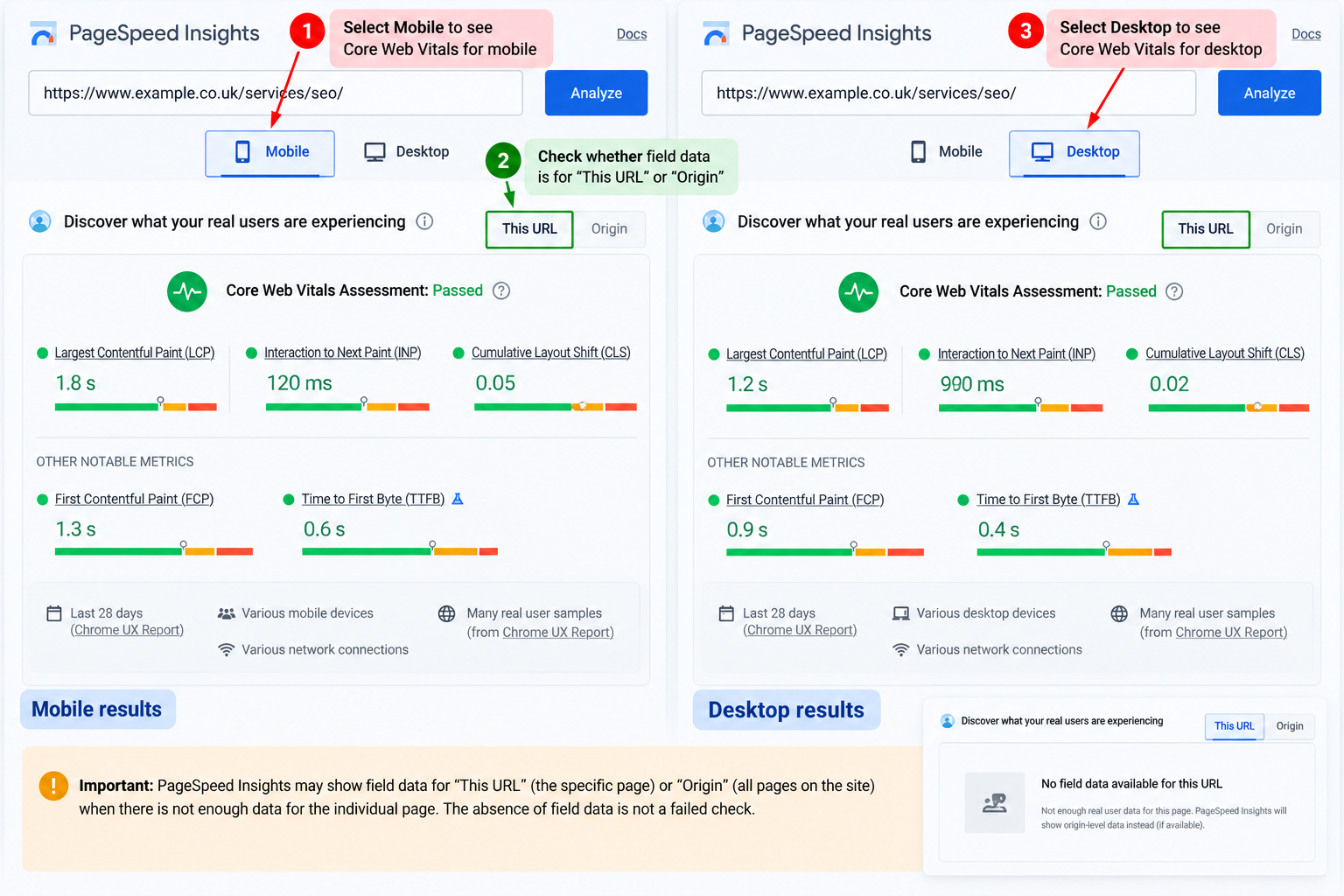
Run representative URLs through PageSpeed Insights. Separate the real-user data, where available, from the controlled Lighthouse test. Real-user data may describe the individual URL or the wider origin, and some pages have insufficient data.
Quick steps: In Search Console, open Core Web Vitals, choose Mobile or Desktop, then open an issue row to view affected URL groups. Record the device, metric, status and example URL. This report groups real-user data; use PageSpeed Insights for an individual URL’s test. No GSC data is not a failed result.
Expected result: assess loading with LCP, responsiveness with INP and layout stability with CLS. The current ‘good’ thresholds are LCP at or below 2.5 seconds, INP at or below 200 milliseconds and CLS at or below 0.1, assessed at the 75th percentile of visits.
Next step: record the data scope and recurring problems before planning fixes. Missing field data is not a failed test, and a high lab score does not guarantee good real-user performance or rankings.
Core Web Vitals definitions and thresholds
HTTPS, metadata and structured data
14. Check HTTPS and insecure resources
Open the selected pages using HTTPS and check for certificate warnings or blocked insecure resources. Review old HTTP links and whether public URL versions resolve consistently to the intended address.
Expected result: visitors can use the website securely without certificate errors or broken mixed-content resources.
Next step: pass certificate or resource issues to your developer or host. UK targeting does not require a UK-hosted server, and HTTPS alone does not guarantee visibility.
15. Review titles, H1 and duplicate pages
Use your CMS or crawler to review page titles and main H1 headings on the selected templates. Look for empty fields, staging text and repeated defaults. Check whether near-identical URLs represent useful separate pages or accidental duplicates. Review meta descriptions separately in check 18 (D18).
Expected result: titles and headings describe the intended page and duplicate versions have a deliberate treatment. Repeated text is a review signal, not automatic proof of a penalty.
Next step: investigate template problems first. Record low-value or near-identical pages for content review rather than deleting them because they fall below a fixed word count. A full content-quality or keyword audit goes beyond this checklist.
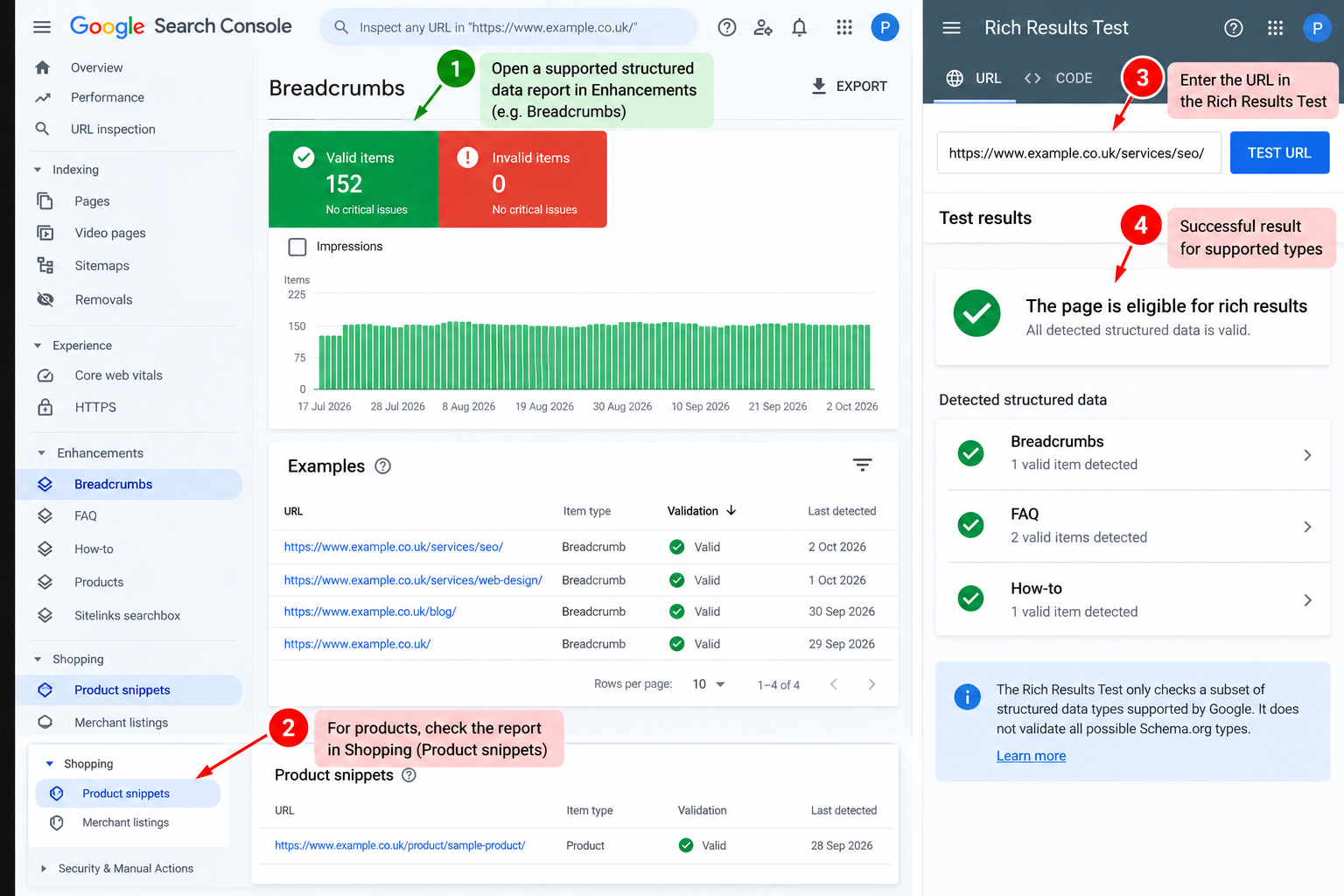
16. Validate relevant structured data
If the page uses structured data, test a representative URL in Google’s Rich Results Test. Review supported items, errors and whether the markup agrees with the visible content. The Schema Markup Validator can help inspect schema outside Google’s supported rich-result types.
Quick steps: In Search Console, open Enhancements and select the relevant rich-result report, if one is available. Open an issue to see examples; record the result type, issue and affected URL group. For a specific page, use the Rich Results Test. No GSC report does not prove that markup is absent or error-free.
Expected result: properties are accurate, appropriate to the page and supported by visible information. Missing optional properties are different from errors in required properties.
Next step: correct misleading or broken markup. Do not add irrelevant types or promise a rich result; valid markup does not guarantee that Google will display one.
Google’s structured data policies
Images and meta descriptions
17. Review images and image loading
Inspect important images on selected templates. Check that image URLs load, meaningful images have useful alt text, decorative images use empty alt text, and dimensions or aspect ratios reserve space. Review image weight, responsive sizes and loading behaviour.
Expected result: Images remain visible and accessible without avoidable layout movement or oversized downloads. Do not lazy-load the main above-the-fold image that determines LCP. Modern formats are useful when supported, not a requirement for every image.
Next step: Record affected image and page URLs. Ask the developer to review compression, responsive delivery and loading priority. Verify that lazy-loaded images appear in rendered evidence.
18. Review meta descriptions separately
Inspect the meta description of each selected page in the CMS or source. Look for missing text, irrelevant defaults and descriptions copied across different page purposes.
Expected result: Descriptions accurately summarise the page and its value to the reader. Google may generate a different search snippet; a missing description alone is not an indexing barrier.
Next step: Write or revise descriptions where useful, starting with important search landing pages. Avoid treating a fixed character count as a universal pass/fail rule.
Google’s meta description and snippet guidance
Review settings for UK visitors
These checks cover delivery, access and business information that matter to a UK audience. Local profile and markup checks depend on the business’s eligibility and actual facts. Record a reason when a feature does not apply.
19. Review cookie controls and banner behaviour
In a fresh browser session, review the site before a choice, after reject, after accept and after changing the choice. Where consent is required, inspect whether the relevant tags or storage wait for it. Check mobile usability and whether main content exists in rendered output without interacting with the banner.
Expected result: Controls behave according to the documented purposes and applicable requirements. Content remains accessible and the banner does not cause major layout or interaction problems. PECR includes five conditional exceptions. A narrowly defined statistical-purposes exception may cover some analytics without consent only when its conditions are met, including clear information and a simple, free way to object. Do not assume analytics is automatically exempt. This is a technical behaviour check, not a legal compliance certificate.
Next step: Record the choice, tag or cookie, page, time and evidence. Ask the privacy owner to confirm consent requirements or whether a specific exception applies using current ICO guidance. Investigate blocked content or excessive script cost with the developer.
20. Review delivery speed from UK locations
Test important templates from a UK location where possible. Record location, device, cache state and time; repeat slow results. Inspect TTFB, cache headers and CDN behaviour. Keep regional controlled tests separate from real-user Core Web Vitals in D13.
Expected result: UK visitors receive reliable, responsive page delivery. A UK server is not mandatory. Google may use server location as one regional signal, but it is not definitive and does not establish good performance. TTFB is a diagnostic metric, not a Core Web Vital.
Next step: Give recurring slow requests and test conditions to the host or developer. Investigate backend delays, network routing, caching and CDN configuration before choosing a hosting move.
21. Review business details and policy access
Open contact and footer links on mobile and desktop. Check real business name, address or service area, +44 phone and email where relevant, and that privacy/cookie information is reachable. For an eligible local business, compare relevant details with its Google Business Profile and visible LocalBusiness or Organization markup.
Expected result: Published details are accurate and usable; policy links resolve. Markup agrees with visible facts. Use only truthful public addresses and suitable schema types. Google Business Profile applies only to eligible businesses. This supporting local/UX check does not certify legal compliance.
Next step: Fix broken contact or policy links and factual mismatches. Review schema in D16. Ask the relevant business/privacy owner about required disclosures; do not invent a UK office or publish a private address.
22. Review language and regional page access
Check that UK visitors can reach the intended English/UK pages without forced location redirects. Inspect the HTML lang value for consistency with the language used; en-GB is suitable for British English. If separate country/language versions exist, review UK equivalents with A01, using hreflang en-GB where appropriate.
Expected result: Regional URLs are accessible and language labels match the content. A UK-only English site does not need hreflang solely for UK targeting. A .co.uk or .uk domain is not compulsory. HTML lang helps accessibility but is not Google country targeting.
Next step: Investigate inaccessible regional URLs or incorrect language labels. Use A01 for reciprocal hreflang and canonical checks. Search Console has no current International Targeting country setting; do not try to configure the retired report.
ICO guidance on storage and access exceptions
Google Business Profile eligibility
Google’s regional and multilingual website guidance
Search Console’s retired International Targeting report
Using the checklist before a website launch or relaunch
Use the eight checks in the Launch & relaunch tab when creating a new website or changing an existing one. Record whether each check was performed before or after publication. A staging result alone cannot confirm the production configuration.
- L01 Review publish-ready page HTML: check descriptive titles and main H1 headings, links with valid destinations and essential content in the rendered page before release.
- L02 Check mobile pages and important actions: test navigation, contact links, booking or enquiry forms and essential content before and after publication.
- L03 Check production crawling and indexing settings: inspect live pages for accidental robots.txt restrictions, noindex, authentication barriers and unexpected errors.
- L04 Check production canonicals and sitemap URLs: confirm that preferred URLs use the live domain and refer to the intended accessible pages.
- L05 Keep an existing URL and search baseline: before a relaunch, save an old URL inventory and export available Search Console data with dates, country, search type and device filters.
- L06 Map changed URLs to relevant destinations: agree the treatment of each changed address before a relaunch. Avoid blanket redirects to the homepage.
- L07 Check live redirects and internal links: after a relaunch, test old-to-new mappings, final destinations and links to obsolete addresses.
- L08 Monitor indexing and search outcomes: record the release date, inspect important live URLs and compare Search Console periods with consistent filters as new data becomes available.
For a new website, existing-URL and relaunch-only checks may be Not applicable; record why. A relaunch checklist helps identify avoidable problems but cannot guarantee that rankings remain unchanged. An unexpected loss needs investigation against the release record and available evidence.
Extra checks for more complex websites
The five rows in Advanced checks apply when your website has the relevant features. Record your scope and evidence, and involve your developer or a specialist when the diagnosis requires deeper access.
- A01 Language and regional versions: review localisation, accessible equivalents and reciprocal hreflang annotations with valid codes. Use en-GB for a British English equivalent, with self-references and return links. A UK-only English website does not need hreflang simply because it targets the UK.
- A02 Filters and URL parameters: decide which combinations provide useful search landing pages and which create duplicate or excessive URL spaces. Agree the strategy before changing crawl or indexing rules across the site.
- A03 Pagination and infinite scroll: check that search engines can reach the items through links and appropriate URLs. Do not automatically canonicalise every paginated page to page one.
- A04 Crawl activity and logs: investigate patterns using Search Console Crawl Stats and verified bot requests in server logs. Record limitations; most small websites should start with access and indexing questions rather than assume a crawl-budget problem.
- A05 Complex JavaScript rendering: compare representative HTML and rendered templates, including navigation, metadata and routing. Missing content after hydration needs platform-specific diagnosis. A crawler result does not prove Google’s final indexed state.
Google’s crawl-budget guidance
Turn the checklist into a prioritised action list
Use the DIY checklist to record each review and the Action plan tab for individual problems. One check can reveal several separate tasks. Record the affected URLs or template, observed problem, evidence where useful, business impact, priority, action, owner and target date.
Choose a status that matches the evidence
- Not assessed: the check has not been performed, or the evidence or access needed for it is unavailable. A blank status also remains unfinished.
- Checked: the stated scope was reviewed and no issue was found within that scope. Record the reviewed URLs, real check date, observation and coverage.
- Issue found: observed behaviour needs action or further investigation. Complete the same fields and add each separate problem to Action plan.
- Partially checked: only part of the required sample or evidence was reviewed. State what you checked and what remains unavailable.
- Not applicable: the feature or scenario does not apply. Explain why in Observation or reason. The summary excludes it from applicable checks only when a reason is recorded.
Record readiness checks whether the required fields are present. Recorded does not prove that the diagnosis or proposed fix is correct. If it asks for details, complete the missing fields rather than changing the status to hide the gap.
Read the progress summary
Recorded applicable checks, Partially checked, Not assessed / blank status, N/A with a recorded reason and Records needing more detail are exclusive groups. Together they account for all 22 DIY checks. Issue found is a separate overlapping flag, so do not add it to that total.
The recorded share divides completed applicable checks by 22 minus N/A checks with a reason. Partial checks and incomplete records remain unfinished. If all checks are legitimately N/A, the share shows n.a. The figure describes recording progress, not technical health, business impact or ranking potential.
Set High, Medium or Low priority
- High: important pages face a confirmed access or indexing barrier, such as accidental noindex or an unintended restriction following a release.
- Medium: recurring issues affect useful pages without blocking access, such as broken links, confusing navigation or performance problems.
- Low: limited-impact improvements that can be scheduled after more significant issues have been reviewed.
Check the actual impact before choosing a priority. A broken link to a booking page can matter more than many minor warnings. Use Needs investigation in the task status when the cause is uncertain; uncertainty is not a priority level.
The task statuses are Open, Needs investigation, Planned, In progress, Ready for retest, Verified and Deferred. After a fix, repeat the relevant check and record both the retest date and result before marking the task Verified. Review Search Console when new information becomes available and keep release dates with the record.
Questions about a DIY technical SEO review
Can I do the checks without paid tools?
Yes. Search Console, browser checks and PageSpeed Insights cover useful first checks. A crawler can make reviewing more URLs easier, and specialist tools or access may be needed for deeper problems.
Does every ‘Not indexed’ URL need a fix?
No. Redirects, alternate duplicate URLs and deliberately excluded utility pages may be behaving as intended. Focus on pages you want available in search and investigate their reported status.
How often should I repeat the checklist?
Repeat relevant checks after important website changes and review key pages regularly. The frequency should reflect how often your website changes and the risk involved. Logs, crawl activity and performance trends need ongoing review on more complex sites.
Should I fix every technical issue before improving content?
Resolve serious access and indexing barriers promptly. Technical and content work can otherwise proceed together according to their impact and dependencies. A checklist cannot establish that technical SEO is the only reason content is underperforming.
How does HTTPS affect technical SEO?
HTTPS protects data in transit between the browser and website. In a technical review, check certificates, insecure resources and consistency between public URL versions. An HTTP-to-HTTPS move also needs review of redirects, internal links, canonical URLs and sitemap entries. HTTPS alone does not guarantee higher rankings.
Which metrics matter in a technical SEO review?
Start with response errors, unexpected crawling restrictions, indexing status and canonical conflicts on the pages you want people to find. Review real-user LCP, INP and CLS where available, keeping field data separate from lab tests. Larger sites may need crawl activity and server logs. Search Console impressions, clicks, CTR and average position help track outcomes but do not identify a technical cause on their own. Keep dates and filters consistent.
Can a tech SEO checklist or an on-page checker replace an audit?
Tools report what they can access under their settings. Compare their findings with the affected page, Search Console and rendered evidence before deciding what needs fixing. An automated warning is a starting point for investigation. Some issues require source-code review, repeated crawls, server evidence or specialist analysis.
What should I check if my website uses a website builder?
Review the available settings for page titles, indexing, canonical URLs, redirects and sitemaps, then check the published pages. Templates and integrations can affect internal links, mobile content and performance. Controls vary by platform and plan; confirm what your builder supports before assuming a fix is available.
How long does a technical SEO review take?
A first review of a small site may fit into one working session. Access, templates and the problems found determine the time. A professional technical audit can take several working days or longer, especially when crawling, rendering or server analysis is needed. A crawler’s warning list is not a complete audit.
Why does the sheet ask for a valid date or more details?
Use the date picker or an actual spreadsheet date in dd/mm/yyyy format, such as 11/10/2026. Text forced with an apostrophe does not count as a date. Completed checks also need reviewed URLs, an observation and coverage. Not applicable requires a reason. Evidence links are optional, but any supplied link must be a full http:// or https:// URL.
Is every UK setting mandatory?
Apply the checks to the features your website actually uses. A .uk domain or UK-hosted server is not compulsory. A single UK English site does not need hreflang solely for UK targeting. HTML lang helps accessibility; it is not Google’s country-targeting control. For cookie requirements or statutory disclosures, the responsible owner should confirm the applicable guidance. This worksheet does not certify legal compliance.
Need a professional technical SEO analysis?
If important pages remain excluded, visibility has dropped after a migration, or the evidence points to a complex rendering or duplication problem, Prime Lion Digital can carry out a professional analysis for you.
We investigate the relevant evidence and help you prioritise the next steps. See what the service covers and discuss the scope for your website.
Explore our technical SEO audit and diagnostic services
Phone: +447488818286
About the Author
This article was prepared by Serhii Kryvoviaz, CEO of Prime Lion Digital.
Serhii has worked across website development, technical SEO, SEO strategy, content architecture, UX optimisation and digital growth projects for businesses operating in a wide range of industries. His work focuses on the relationship between technical website infrastructure, search visibility, user experience and sustainable long-term business growth.
Drawing on practical experience from website audits, redesign projects, migrations and SEO recovery campaigns, this article reflects many of the technical patterns, challenges and opportunities commonly encountered across modern business websites.